Run your store from Claude, ChatGPT or any AI app
Connect NanoSite to the AI app you already use and manage products, orders, promotions and your storefront from chat, with nothing to download.
On this page
You probably already have a chat open with an AI assistant most of the day. You ask it to write a product description, sum up a supplier's price list, or draft a reply to a customer. Then you copy the answer, open your store admin, find the right page and paste it in.
That last part is the boring part, and it's the part we just removed.
What changed#
NanoSite speaks MCP, the Model Context Protocol. MCP is an open standard that lets an AI app use tools from other services, with your permission. Once you connect NanoSite, your AI app can work on your store the same way NanoSite's own AI builder does:
- Your catalog: add, edit and organize products, prices, stock and collections.
- Your orders and customers: look up orders, see what's waiting to ship, answer "what sold this week?".
- Promotions and settings: create discount codes, adjust shipping and tax, switch add-ons on or off.
- Your storefront: change pages, sections, text and layout. The AI edits the real code of your store, following the same rules our builder follows, so it keeps working.
It works with the app you prefer. Claude, ChatGPT, Cursor, VS Code, Gemini CLI: if it supports MCP, it works.
Set it up in a minute#
- In your AI app, add a connector (some apps call it an MCP server) with this address:
https://nanosite.ai/api/mcp. Not sure where? Here's where to find it in each app. - A NanoSite page opens. Log in if you need to, check what the app is asking for, and click Allow.
- Start a chat and turn on NanoSite.
<<INSERT THE APPROVAL-PAGE IMAGE HERE: Insert image → blog-consent.png, then set the caption below>>
That's it. There's no API key to copy and no developer account to create. The step-by-step guide for each app is in our docs: Connect your AI agent.
A week in the life of a store, run from chat#
Here's what that looks like for a small store, say a candle shop, over one week.
Monday: a new product line from a supplier sheet#
Your supplier sends a spreadsheet with twelve new scents. Drop it into the chat:
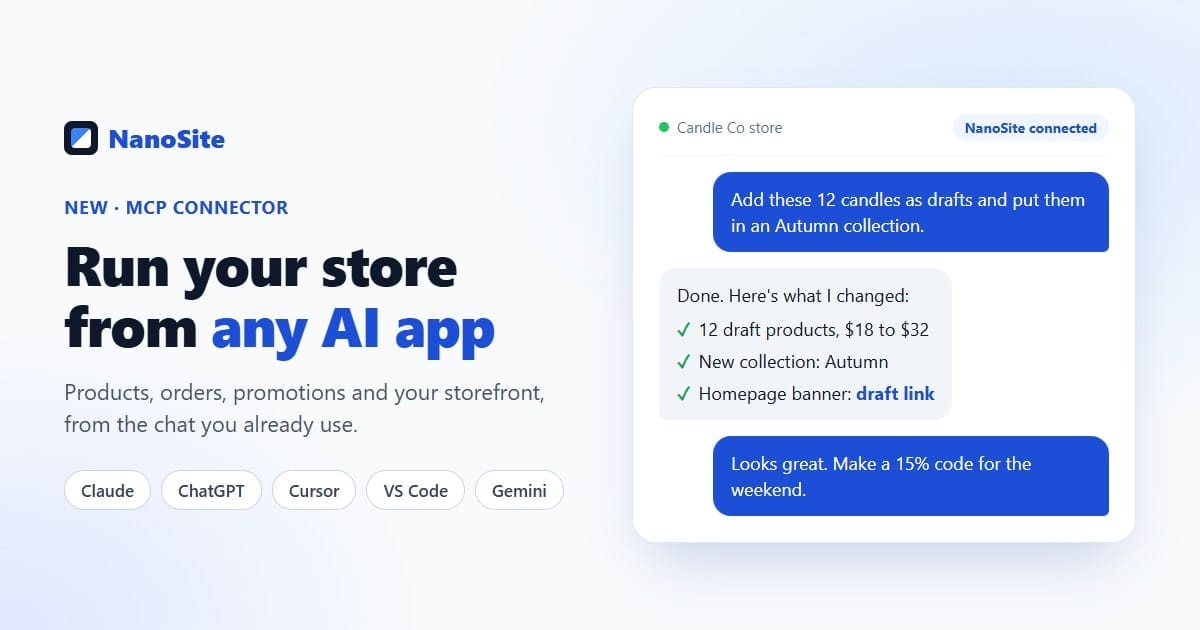
"In my Candle Co store, add these 12 candles as draft products. Use the name and price from the sheet, set stock to 20 each, write a two-sentence description in our usual warm tone, and put them in a new collection called Autumn."
The AI reads the sheet, creates the twelve products and the collection, and tells you what it did. They stay as drafts until you're happy with them.
Tuesday: what actually sold#
"Which products sold best in the last 7 days, and which orders from this week haven't shipped yet?"
You get a short answer, not a dashboard to dig through. Follow up in plain language: "Draft a friendly delay email for the two oldest unshipped orders."
Wednesday: a weekend promotion, end to end#
"Create a code AUTUMN15 for 15% off the Autumn collection, valid Friday to Sunday. Then add a banner to the top of the homepage announcing it, matching our colors."
That's a store setting and a storefront change in one request. The AI creates the discount, edits the homepage, and gives you a draft link so you can see the banner before anyone else does.
Thursday: let the AI check its own work#
If your AI app has a browser tool (Claude in Chrome, or the free Playwright MCP server), it can open that draft link itself:
"Open the draft, check the homepage on mobile, and fix anything that looks broken."
It looks at the page the way a customer would, notices that the banner text wraps badly on a small phone, and fixes it. You review the result and publish when you're happy.
Friday: one tidy-up you've been putting off#
"Find products with no description or only one photo, and list them."
Ten minutes later your catalog is in better shape than it's been all year.
You stay in charge#
Handing your store to an AI should feel safe. A few things make sure it is:
- You approve what it can do. The approval page lists exactly what the app will be able to do, and you can disconnect it at any time under Account settings → Connected apps and devices.
- It asks before it changes things. Every action that changes your store is marked as one, so your AI app asks you first.
- Nothing goes live by itself. Storefront changes land in your draft. Your customers see them only when you publish.
- Every change can be undone. Each edit is saved as its own version in your project, and shows up in NanoSite's builder chat, where you can roll it back.
- Secrets stay on NanoSite. Payment keys and passwords are never typed into an AI app. When one is needed, NanoSite asks you to enter it on nanosite.ai.
Why we built it this way#
There are two ways to bring AI into a store. One is to build a chat box into the admin and hope you remember to open it. The other is to meet you where you already work.
We do both. NanoSite's builder chat is still there, and it's still the fastest way to start a store. But a lot of store owners already think out loud with Claude or ChatGPT all day, and those assistants are getting better every month. With MCP, every improvement they make becomes an improvement to how you run your store, without you switching tools.
Try it: copy, paste, done#
Copy this message and paste it into your AI app:
Add the NanoSite MCP server: https://nanosite.ai/api/mcp
If you can't add it yourself, tell me where to paste it in your settings.
Coding agents like Claude Code, Cursor, VS Code and Gemini CLI add it on their own. Chat apps like claude.ai and ChatGPT tell you where to paste it. Then click Allow on the NanoSite page and ask for your first change.
Full setup for every app: Connect your AI agent. Don't have a store or website yet? Start one free and connect your AI on day one.